



Method 1: Use Built-in Mac Screenshot Tools
macOS includes everything you need for basic screenshots, including keyboard shortcuts, a Screenshot app, and simple annotation tools.
Mac Screenshot Keyboard Shortcuts
| What you need | Keyboard shortcut |
|---|---|
| Capture the entire screen | Shift + Command + 3 |
| Capture a selected area | Shift + Command + 4 |
| Capture a specific window | Shift + Command + 4, then Space |
| Open the Screenshot toolbar | Shift + Command + 5 |
| Copy a screenshot to the clipboard | Hold Control with a screenshot shortcut |
Scroll sideways to see all columns.
Capture the Entire Screen
Press Shift + Command + 3 to capture your entire screen. The screenshot is saved to your desktop by default.
Capture a Selected Area
Press Shift + Command + 4, then click and drag to select the area you want to capture.
Release to take the screenshot, or press Esc to cancel.
Capture a Specific Window
Press Shift + Command + 4, then Space. Click the window you want to capture.
Hold Option while clicking to exclude the window's shadow.
Use the Screenshot App
Press Shift + Command + 5 to open the built-in Screenshot toolbar. You can also find it under Applications → Utilities → Screenshot.
The toolbar lets you capture your screen, record video, set a timer, and choose where screenshots are saved.
Edit and Annotate Screenshots
Click the floating thumbnail after taking a screenshot to open the built-in Markup tools.
You can crop images, add shapes, arrows, and text. For existing screenshots, open them in Preview and use the Markup toolbar.
These tools are sufficient for most occasional screenshot and editing needs.
Method 2: Use 1Capture for Screenshots and Visual Feedback
If you frequently capture screens to explain ideas, report bugs, or give feedback, a dedicated screenshot tool can make the process faster.
1Capture is a native Mac app that combines screenshots, screen recording, and annotations into a streamlined workflow.
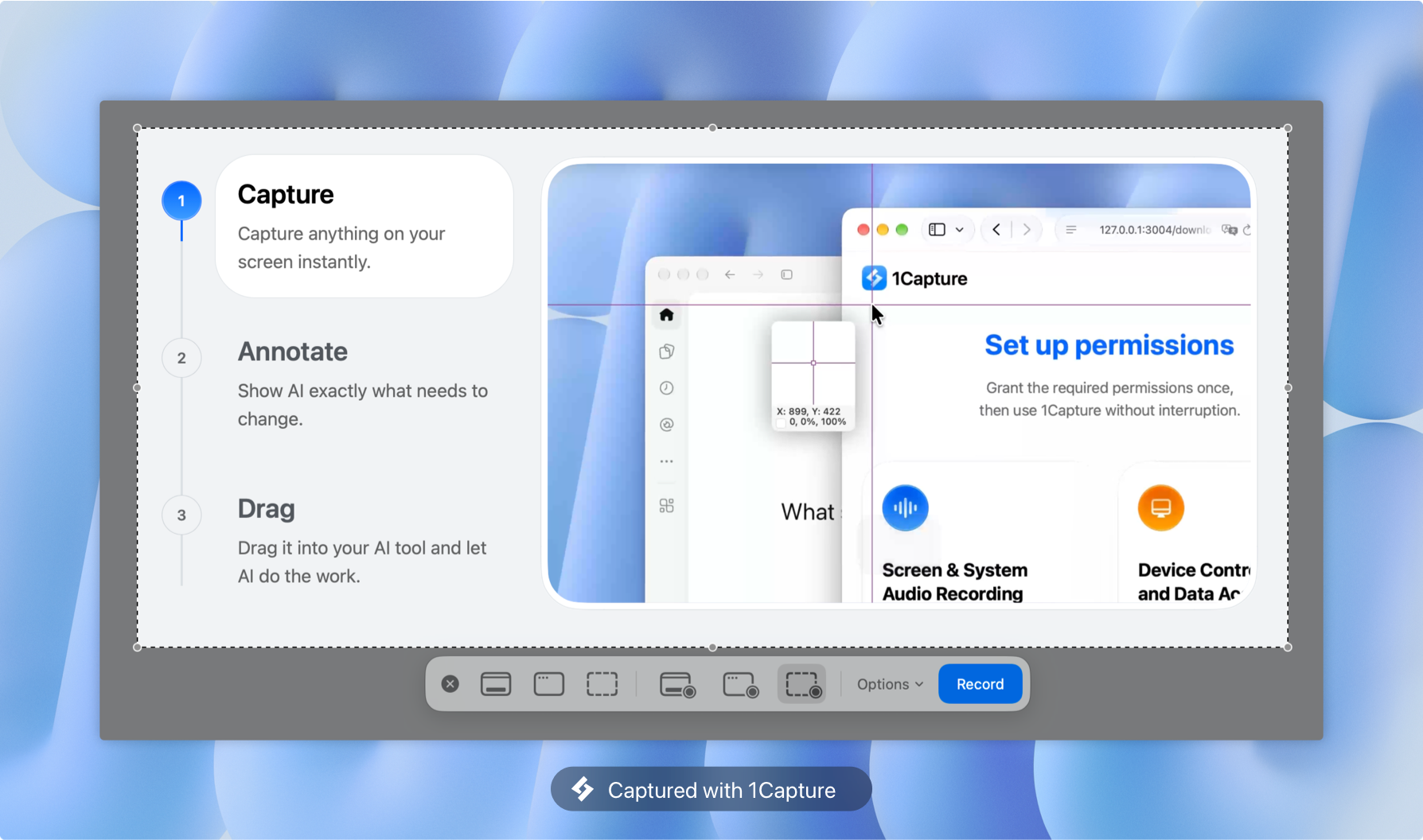
1. Capture
Double-press Option, the default shortcut, to enter capture mode.
Select an area or window and adjust your selection as needed. You can also take scrolling screenshots to capture long webpages, documents, or conversations.
2. Annotate
Add arrows, shapes, text, and other annotations directly to your screenshot.
Highlight important details, point out problems, or show exactly what needs to change.
3. Share
Copy, save, or drag your annotated screenshot into another app.
This is especially useful when working with developers, designers, or AI coding tools.
For example, instead of explaining a UI issue in a long message, you can annotate the screenshot and simply say:
Move the highlighted button below the final input field. Change the color to black.
Visual annotations help people and AI tools understand your feedback with less back-and-forth.
Frequently Asked Questions
Where do screenshots go on Mac?
By default, screenshots are saved to your desktop. To change the location, press Shift + Command + 5, click Options, and select a destination under Save to.
How do I screenshot on Mac and paste it?
Hold Control while using a screenshot shortcut to copy the image to your clipboard.
For example, press Control + Shift + Command + 4 to capture an area, then Command + V to paste it into a compatible app.
Why is my Mac screenshot shortcut not working?
Check System Settings → Keyboard → Keyboard Shortcuts → Screenshots to make sure the shortcuts are enabled.
If they still don't work, check for conflicts with other apps or try restarting your Mac.
How do I change screenshot shortcuts on Mac?
Go to System Settings → Keyboard → Keyboard Shortcuts → Screenshots to customize the key combinations.
How do I take a scrolling screenshot on Mac?
The standard macOS screenshot shortcuts don't support automatic scrolling capture.
You can use a browser's full-page capture feature where available, or a dedicated app like 1Capture to capture scrolling content.
How do I annotate a screenshot on Mac?
Use the built-in Markup tools or Preview to add text, arrows, and shapes.
If you annotate screenshots frequently, 1Capture offers a more streamlined capture-and-annotation workflow.